Data Storage at BNL
Storage Limits
| Home area | 20GB (with backup) per user under $HOME |
| Data area | 500GB per user under /atlasgpfs01/usatlas/data/$USERNAME |
| dCache area | 5TB per user under /pnfs/usatlas.bnl.gov/users/$USERNAME. |
| BNLBox | 50GB (with backup) space under https://bnlbox.sdcc.bnl.gov, accessiblle from both mobile devices and computers |
| LOCALGROUPDISK | 50TB (default) on the grid at BNL. Please check below for more details |
Note:
- Quota and usage in the atlasgpfs01 Data area can be checked using the command
/usr/lpp/mmfs/bin/mmlsquota atlasgpfs01but note that the actual quota and usage is half the values displayed. - In case the subdir
/pnfs/usatlas.bnl.gov/users/$USERNAMEdoes not exist, you can request its creation from the BNL facility team. - Additional space on BNLBox is available upon request to the BNL facility team.
- And there is also a 9TB scratch disk
/usatlas/scratch/shared among all users, where the files can be kept for 30 days. Please make your own subdir/usatlas/scratch/$USERthere.
Guidance on storage usage
As a reminder, your home area ($HOME) is intended to store analysis code, and not data.
Please use the other storage (dCache, LOCALGROUPDISK, and Data area) to store data.
As for dCache, the files could be listed with the command ls under /pnfs. However, they should be accessed via xrootd as explained below. And for batch jobs, it is recommended to write into the dCache at the job end.
LOCALGROUPDISK
If you need to store data outside of the resources dedicated to the BNL Tier 3 (either due to needing more space, or to share data with colleagues who are not using the BNL Tier 3), consider using LOCALGROUPDISK, which is a resource that all US ATLAS collaborators have access to. You can check at RSE account usage with the RSE BNL-OSG2_LOCALGROUPDISK selected. Every user should have a default quota of 50TB, if you could not find your name there, please check if you have selected /atlas/usatlas in the VO groups/roles. For additional space if need beyond 50TB here is the Request form
Dataset Replication to LOCALGROUPDISK
You can replicate datasets to the RSE BNL-OSG2_LOCALGROUPDISK in the 2 following ways:
- Make the request through r2d2 request
- Make the request using rucio command
rucio add-rule. Please check the rucio add-rule wiki page for usage help.
Use the BNL dCache space
dCache is a system for storing and retrieving huge amounts of data, distributed among a large number of heterogeneous server nodes, under a single virtual filesystem tree with a variety of standard access methods.
In order to use it efficiently, please do NOT write output directly to /pnfs path (the dCache space), and also avoid small files. Instead you should use the tool described below or Linux standard cp command. In the following sub-sections, it describes the way to access and replicate datasets to this system.
Access to the datasets on BNL dCache
In addition to Rucio (and DQ2Client), a convenient python script /atlasgpfs01/usatlas/group/scripts/pnfs_ls.py is provided to generate clist file (list of physicsl file path) for files in given datasets on BNL dCache, including datasets both on BNL rses (such as BNL-OSG2_LOCALGROUPDISK) mentioned above) and under BNL users dCache area.
Please click the following arrow to see the full usage.
run pnfs_ls.py -h to get the full usage
% pnfs_ls.py -h
Usage:
     pnfs_ls.py [options] dsetListFile
  or
     pnfs_ls.py [options] dsetNamePattern[,dsetNamePattern2[,more namePatterns]]
  or
     pnfs_ls.py -o clistFilename /pnfs/FilePathPattern [morePaths]
  or
     pnfs_ls.py -p -o clistFilename [pnfsFilePath | pnfsDirPath] [morePaths]

  This script generates pfn (physical file name), pnfs-path,
or xrootd-path of files on BNL dcache for given datasets or files on PNFS,
where wildcard and symlink are supported in pnfsFilePath and pnfsDirPath

Options:
  -h, --help            show this help message and exit
  -v                    Verbose
  -V, --version         print my version
  -p, --privateFiles    List private non-dataset files on dCache
  -i, --incomplete      Use incomplete sites if complete not available
  -u, --usersDCache     Use datasets under users private dCache
  -l, --listOnly        list only matched datasets under users dCache, no pfn
                        output
  -o OUTPFNFILE, --outPfnFile=OUTPFNFILE
                        write pfn list into a file instead of printing to the
                        screen
  -d OUTPFNDIR, --dirForPfn=OUTPFNDIR
                        write pfn list into a directory with a file per
                        dataset
  -N, --usePNFS         using pNFS access, default is xrootd within BNL
  --useXRootdOutside    using xroot from outside BNL: access, default is
                        xrootd within BNL
  -L LOCALBNLSITE, --localBNLSite=LOCALBNLSITE
                        specify a BNL site, overriding the one chosen by the
                        script
Access your data in your pNFS space
This section shows you how to access data in your pNFS space (/pnfs/usatlas.bnl.gov/users/$USER/....)
BNL supports various interfaces to your area:
1. xrootd (from interactive or any worker nodes) This might be the most optimum way within your interactive or panda/condor jobs. All files are accessible via xrootd by prepending the following
root://dcgftp.usatlas.bnl.gov:1096/
For example:
xrdcp -f root://dcgftp.usatlas.bnl.gov:1096//pnfs/usatlas.bnl.gov/users/hiroito/rucio/data10_7TeV/data10_7TeV.00167680.physics_MinBias.merge.AOD.r1774_p327_p333_tid206966_00/AOD.206966._000004.pool.root.1 /home/hiroito/abc.1
[4.063GB/4.063GB][100%][==================================================][106.7MB/s]
Please notice that xrootd access would require a valid grid proxy.
2. NFS.4.1 (only from T3 machines - they are not available from BNL production worker nodes.) Within T3 machines, files are accessible like normal NFS file. Just use path.
3. Web (from outside BNL) Using your browser, you can access your files via browser with your valid certificate. just point to: [https://dcgftp.usatlas.bnl.gov:443/pnfs/usatlas.bnl.gov/users/youraccount/xyz/] (https://dcgftp.usatlas.bnl.gov:443/pnfs/usatlas.bnl.gov/users/youraccount/xyz/).
Use the BNLBox
BNL provides a cloud storage BNLBox, similar to the CERNBox, but based on NextCloud. You can use it to share between computers and mobile devices, among groups. Everyone has a default quota of 50GB.
You can find more details on the SDCC page
It can be accessed from web browsers, [or desktop clients, or mobile apps] (https://nextcloud.com/install/#install-clients).
Use the BNLBox on Web Browsers
The web browser URL is https://bnlbox.sdcc.bnl.gov. You can log in with your BNL account. Please find out the webDAV access URL by clicking on the bottom left Settings on the sidebar, as shown below:
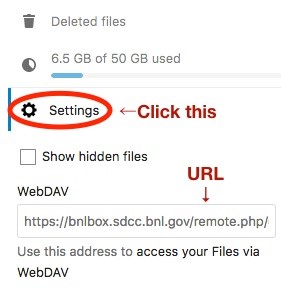
The webDAV URL is something like https://bnlbox.sdcc.bnl.gov/remote.php/dav/files/BNL-User-8efba3ed-bfc8-4324-9cef-e9f4878c3c8d/, where the last part in the path is your unique UUID.
Use the BNLBox on Linux machines
The software cadaver has been installed on attsub machines at BNL, and lxplus machines at CERN. It is a command line webDAV client, with ftp-like commands. To save you from typing the username/password every time, you can prepare a file .netrc under $HOME directory with the following content:
machine bnlbox.sdcc.bnl.gov
  login yourLoginEmail
  password yourPassword
where you should put your own login and password. And run "chmod 600 $HOME/.netrc" to make this file visible only to yourself.
In addition, you can prepare another file \~/.cadaverrc with the following line:
open https://bnlbox.sdcc.bnl.gov/remote.php/dav/files/Your-LONG-UUID-for-BNLBox/
Please put your own long UUID here.
Then just simply run cadaver, it will connect to your BNLBox.
attsub01% cadaver
WARNING: Untrusted server certificate presented for `*.sdcc.bnl.gov':
Issued to: SDCC, Brookhaven National Laboratory, 53 Bell Avenue, Upton, New York, 11973-5000, US
Issued by: InCommon, Internet2, Ann Arbor, MI, US
Certificate is valid from Tue, 25 Sep 2018 00:00:00 GMT to Thu, 24 Sep 2020 23:59:59 GMT
Do you wish to accept the certificate? (y/n) y
dav:/remote.php/dav/files/BNL-User-8efba3ed-bfc8-4324-9cef-e9f4878c3c8d/> help
Available commands:
 ls         cd         pwd        put        get        mget       mput
 edit       less       mkcol      cat        delete     rmcol      copy
 move       lock       unlock     discover   steal      showlocks  version
 checkin    checkout   uncheckout history    label      propnames  chexec
 propget    propdel    propset    search     set        open       close
 echo       quit       unset      lcd        lls        lpwd       logout
 help       describe   about
Aliases: rm=delete, mkdir=mkcol, mv=move, cp=copy, more=less, quit=exit=bye
dav:/remote.php/dav/files/BNL-User-8efba3ed-bfc8-4324-9cef-e9f4878c3c8d/>
You can use davix commands (davix-ls, davix-put and davix-get) as well to access to your BNLBox. These commands are available by default on lxplus. At BNL, you need run "setupATLAS -q; lsetup davix" to set up the env. Then specify the full webDAV to the davix commands plus an option -k (Disable SSL credential checks).
attsub01% setupATLAS -q
attsub01% lsetup davix
attsub01% davix-ls -k https://bnlbox.sdcc.bnl.gov/remote.php/dav/files/BNL-User-8efba3ed-bfc8-4324-9cef-e9f4878c3c8d/
davix: using ~/.netrc to load additional configuration. (match: bnlbox.sdcc.bnl.gov)
copy_bnl_box.rb
dCache
Documents
._.DS_Store
.DS_Store
Nextcloud%20Manual.pdf
Nextcloud.mp4
Nextcloud.png
Photos
testDir
Archive
Use the BNLBox on Mobile Devices
For iOS or Android devices, just install the Nextcloud app, and connect to bnlbox.sdcc.bnl.gov.